WhatsApp is one of the most widely used messaging applications in the world. Millions of people rely on it daily to communicate with friends, family, and colleagues. Over time, your chats may contain important conversations, media files, and shared documents. Knowing how to check WhatsApp chat history and view detailed information can help you find old messages, recover important details, and manage your conversations more effectively.
In this comprehensive guide, you will learn different methods to check WhatsApp chat history, view chat details, export conversations, and manage your chat records on both Android and iPhone devices.
Understanding WhatsApp Chat History
WhatsApp automatically saves all conversations on your device. These conversations include:
- Text messages
- Voice messages
- Images and videos
- Documents
- Links and contact cards
The chat history is stored locally on your phone and can also be backed up to cloud services like:
- Google Drive for Android
- iCloud for iPhone
This allows users to restore their chats if they change phones or reinstall the app.
Method 1: Checking Chat History Directly in WhatsApp
The easiest way to check your WhatsApp chat history is directly within the app.
Steps
- Open WhatsApp on your smartphone.
- Go to the Chats tab.
- Select the conversation you want to view.
- Scroll up to see older messages.
WhatsApp loads older messages automatically as you scroll, allowing you to view your entire conversation history with a contact or group.
Method 2: Using WhatsApp Search to Find Specific Messages
If you are trying to locate a particular message, using the search feature can save time.
Steps
- Open WhatsApp.
- Tap the search icon at the top.
- Enter keywords related to the message.
- WhatsApp will display matching chats and messages.
You can search for:
- Words or phrases
- Names of contacts
- Shared links or media
This feature is extremely useful when your chat history contains thousands of messages.
Method 3: View Chat Details and Contact Information
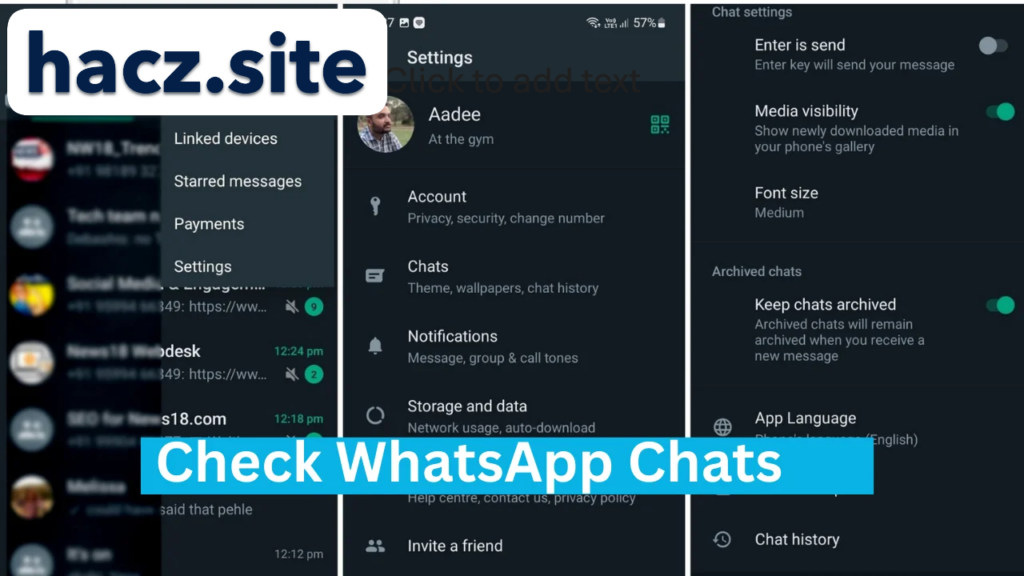
WhatsApp also allows you to check detailed information about chats.
Steps
- Open a chat in WhatsApp.
- Tap the contact name or group name at the top.
- The Chat Info page will appear.
Here you can view:
- Contact profile information
- Shared media, links, and documents
- Encryption details
- Group members (for group chats)
This section helps you quickly access files shared within a conversation.
Method 4: Check Media, Links, and Documents Shared in Chats
Sometimes you may want to find photos, videos, or files sent in a conversation.
Steps
- Open the chat.
- Tap the contact or group name.
- Select Media, Links, and Docs.
This section categorizes files into three sections:
- Media – photos and videos
- Links – URLs shared in the chat
- Docs – PDF files, Word files, and other documents
It is an easy way to retrieve important files without scrolling through the entire chat.
Method 5: Export WhatsApp Chat History
If you want to save your chat history outside the app, WhatsApp provides an export feature.
Steps
- Open the chat you want to export.
- Tap the three-dot menu (Android) or contact name (iPhone).
- Select More.
- Tap Export Chat.
- Choose whether to include media or not.
You can then send the chat file via:
- Cloud storage
- Messaging apps
The exported chat is usually saved as a .txt file.
Method 6: Restore Chat History from Backup
If your chat history is missing or deleted, you may restore it from a backup.
Steps (Android)
- Uninstall WhatsApp.
- Reinstall it from the Play Store.
- Verify your phone number.
- Tap Restore when prompted.
WhatsApp will restore chats from your Google Drive backup.
Steps (iPhone)
- Delete WhatsApp.
- Reinstall it from the App Store.
- Verify your phone number.
- Restore chats from iCloud backup.
This process will recover your previous chat history.
Method 7: View Message Details (Read Receipts)
WhatsApp also allows you to check message delivery and read status.
Steps
- Open a chat.
- Tap and hold the message.
- Select Info.
You will see:
- When the message was sent
- When it was delivered
- When it was read
This feature is especially useful in group chats.
Understanding WhatsApp Chat Backup
Regular backups ensure that your chat history is safe.
Backup Steps
- Open WhatsApp.
- Go to Settings.
- Tap Chats.
- Select Chat Backup.
- Tap Back Up Now.
You can also enable automatic backups daily, weekly, or monthly.
Tips for Managing WhatsApp Chat History
Here are some helpful tips to keep your chat history organized:
Archive Old Chats
Archiving hides chats without deleting them.
Star Important Messages
Star messages to easily find them later.
Delete Unnecessary Chats
Removing old chats can free up storage space.
Backup Regularly
Always maintain backups to prevent data loss.
Privacy and Security Considerations
WhatsApp uses end-to-end encryption, meaning only you and the recipient can read messages.
To enhance security:
- Enable two-step verification
- Lock WhatsApp with fingerprint or Face ID
- Avoid sharing sensitive information in chats
Common Problems and Solutions
Chat History Missing
Restore from your latest backup.
Search Not Working
Update WhatsApp to the latest version.
Backup Failed
Check your internet connection and available storage.
Conclusion
Checking WhatsApp chat history and details is simple once you understand the available features. From searching messages and viewing shared files to exporting conversations and restoring backups, WhatsApp provides several tools to manage your communication records effectively.
By using these methods, you can quickly access old messages, recover important conversations, and keep your chat history secure.
Regular backups and proper chat management will ensure that your important WhatsApp conversations are never lost.