In today’s connected world, WiFi networks power almost everything we do on our smartphones—from browsing the internet and streaming videos to downloading apps and communicating online. But what happens when you forget your WiFi password or want to share it with someone? Many Android users face this situation and wonder how to retrieve saved WiFi passwords from their devices.
This comprehensive guide will walk you through multiple ways to view WiFi passwords on Android devices, including methods that require no root access as well as advanced techniques for rooted phones. Whether you’re using a modern Android device or an older version, you’ll find a method that works for you.
Understanding How Android Stores WiFi Passwords
Android stores saved WiFi credentials securely within the system files of the device. This security measure prevents unauthorized access to network credentials.
Typically, WiFi passwords are stored in protected system directories, which means:
- Normal users cannot directly access them without special permissions.
- Root access is usually required to view raw password files.
- Newer Android versions provide easier sharing options through QR codes.
The exact method you use depends on your Android version and whether your device is rooted.
Method 1: View WiFi Password Using the Built-in Share Feature (Android 10 and Above)
Starting with Android 10, Google introduced a simple feature that allows users to share WiFi networks through a QR code. This method is the easiest and does not require root access.
Steps to View WiFi Password
- Open Settings on your Android device.
- Tap Network & Internet or Connections.
- Select WiFi.
- Tap the connected WiFi network.
- Choose Share.
- Verify your identity using:
- Fingerprint
- PIN
- Pattern
- A QR code will appear.
Below the QR code, many devices display the WiFi password in plain text.
How to Read the Password from the QR Code
If the password is not shown directly:
- Take a screenshot of the QR code.
- Open Google Photos or any QR scanner.
- Scan the QR code.
- The WiFi details including the password will appear.
This method works on most modern Android devices and is the safest option.
Method 2: View Saved WiFi Passwords Using Google Lens
Another convenient method involves scanning the WiFi QR code using Google Lens.
Steps
- Go to Settings → WiFi → Connected Network → Share.
- Capture the QR code.
- Open Google Photos.
- Tap the screenshot.
- Select the Google Lens icon.
- Google Lens will decode the QR code and reveal:
- Network name (SSID)
- Security type
- Password
This approach is helpful when the password isn’t displayed automatically.
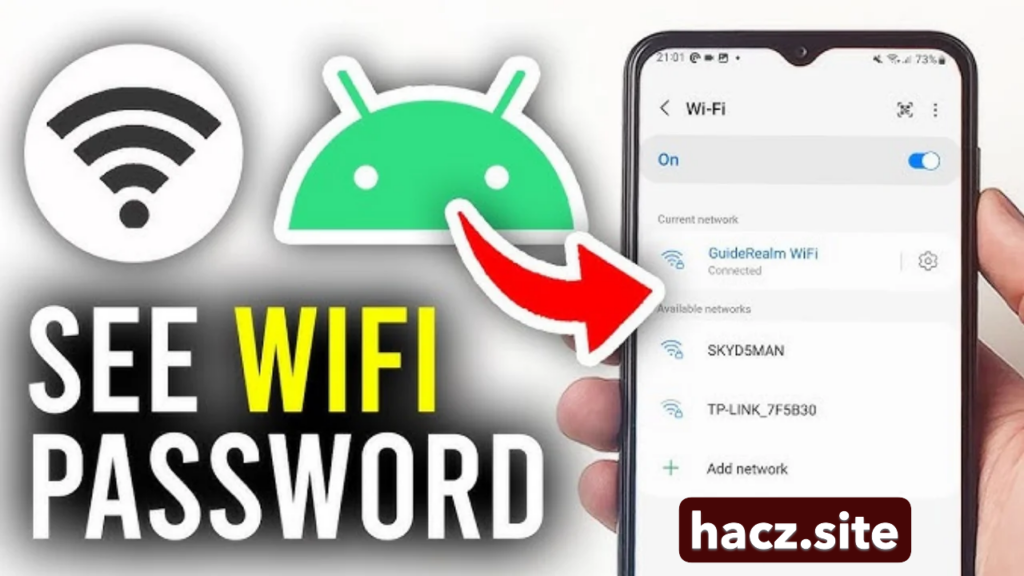
Method 3: View WiFi Passwords on Android 9 and Below (Without Root)
Older Android versions do not include a built-in password-sharing feature. However, you can still retrieve the password by checking your router settings.
Steps
- Connect to the WiFi network.
- Open your browser.
- Enter your router’s IP address (usually):
192.168.1.1
192.168.0.1
- Log in to the router admin panel.
- Navigate to Wireless Settings.
- Locate Security Settings.
- The WiFi password will be displayed under WPA Key or Network Password.
This method works if you have access to the router login credentials.
Method 4: View WiFi Passwords on Rooted Android Devices
If your device is rooted, you can directly access system files that store WiFi passwords.
Requirements
- Rooted Android device
- Root file manager (such as ES File Explorer or Root Explorer)
Steps
- Open the Root File Manager.
- Navigate to:
/data/misc/wifi/
- Locate the file:
wpa_supplicant.conf
- Open the file with a text editor.
Inside the file you will see entries like this:
network={
ssid="MyWiFiNetwork"
psk="mypassword123"
}
The psk value is the WiFi password.
Important Warning
Root access gives complete system control. Incorrect modifications may damage your device or compromise security.
Method 5: Use ADB Commands (Advanced Method)
Advanced users can retrieve WiFi configuration files using Android Debug Bridge (ADB).
Requirements
- Computer
- USB cable
- ADB installed
- USB debugging enabled
Steps
- Connect your phone to your computer.
- Open Command Prompt or Terminal.
- Run the command:
adb shell
- Navigate to the WiFi directory:
cd /data/misc/wifi
- Display the file:
cat wpa_supplicant.conf
This will show all stored WiFi networks and their passwords.
Note: This method usually requires root permissions.
Method 6: Use Third-Party WiFi Password Viewer Apps
There are apps designed to display saved WiFi passwords. These apps generally require root access.
Common features include:
- Viewing saved WiFi networks
- Copying passwords
- Sharing passwords
- Creating QR codes
Typical Process
- Install a WiFi password viewer app.
- Grant root permission.
- The app scans saved networks.
- Passwords are displayed in a list.
Be cautious and download only trusted applications.
How to Share WiFi Passwords Easily
Instead of revealing the password, Android devices allow quick sharing through QR codes.
Benefits
- Faster connection
- No typing errors
- More secure sharing
- Works across Android devices
Many modern smartphones can connect simply by scanning the QR code.
Tips to Keep Your WiFi Network Secure
While retrieving passwords can be helpful, it is equally important to maintain network security.
Best Practices
- Use WPA2 or WPA3 encryption
- Avoid simple passwords
- Change the WiFi password periodically
- Disable WPS if not needed
- Monitor connected devices
- Update router firmware regularly
These steps reduce the risk of unauthorized access.
Troubleshooting Common Issues
Password Not Visible
Try scanning the QR code using Google Lens or another QR scanner.
Share Option Not Available
Your device may be running Android 9 or older.
Root Access Not Working
Ensure the device is properly rooted and your file manager has root permission.
Frequently Asked Questions (FAQs)
Can I view WiFi passwords without root?
Yes. Android 10 and newer versions allow password viewing through the WiFi sharing feature.
Is rooting necessary?
No, rooting is only required for accessing system files on older Android versions.
Is it safe to use WiFi password apps?
It can be safe if you download trusted apps, but many require root access which may expose your device to risks.
Can I recover passwords for networks I’m not currently connected to?
Yes. Saved networks are stored in system files and can be viewed with the right method.